
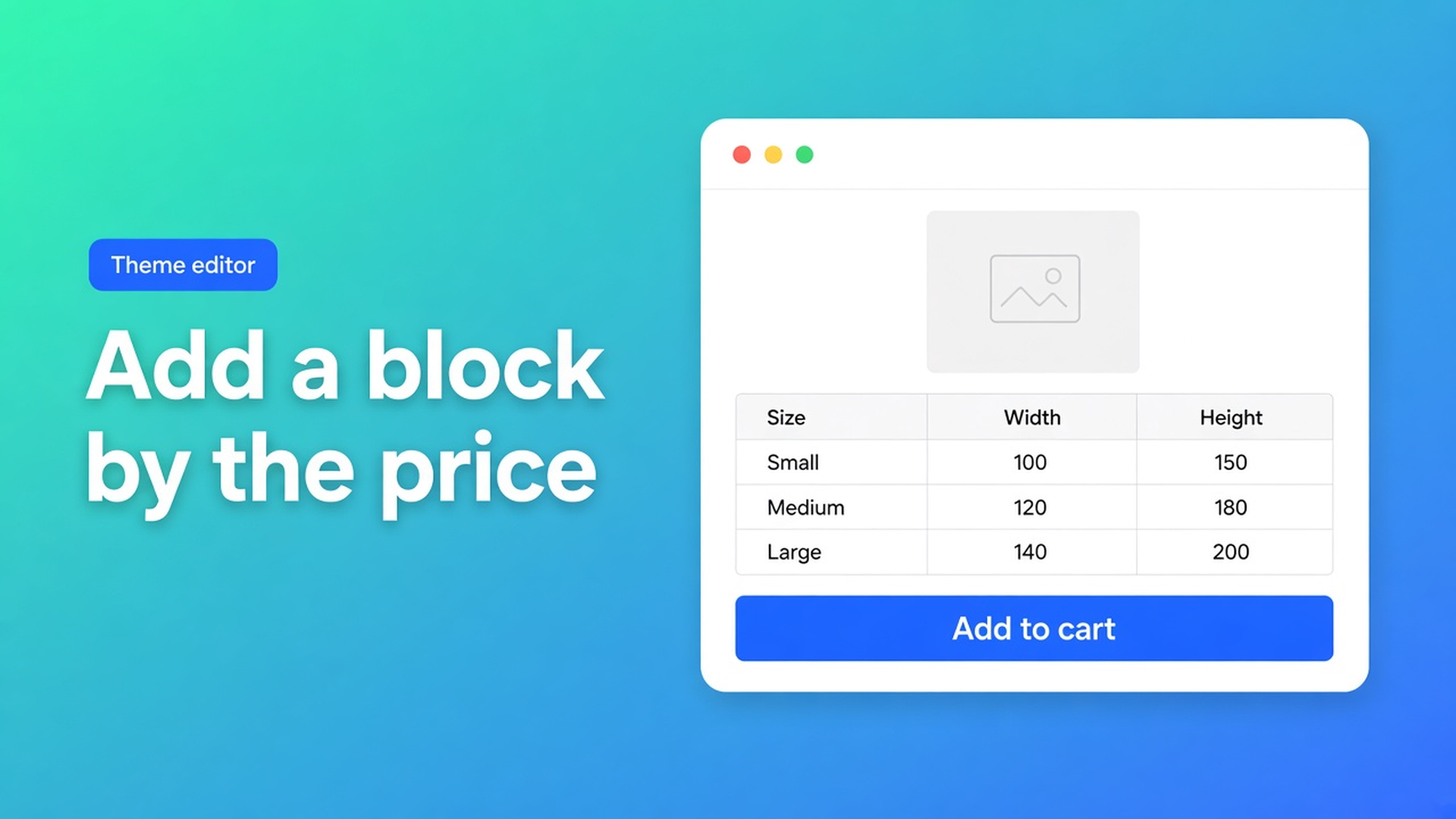
Put a Shopify table on the product template with a theme app block
The size chart is Enabled. The product page still shows nothing — or the table sits under the description, a scroll below Add to cart. Shopify table theme app block is placement, not content. Yesterday was AI design from a brand URL. This article is the five blocks in Customize, which types can appear without a block, and which never will.
The app is OO - Advanced Table Builder. Store listing handle stays `tables-specs-comparisons`. Older docs still say Tables, Specs & Comparisons.
Enabled in the app is not “on the template”
Themes do not print a size chart because you saved one in an app. You need a theme app block, or — for two types — embed auto-placement. Theme structure is empty until you add something in Customize.
Place tables with theme blocks lists five:
Size chart — visibility-based charts
Product specs — visibility-based specs
Compare button — optional manual Compare slot
Tabbed tables — one specific tabbed table
Us vs Them — one specific Us vs Them table
Same page’s recommendation: Size chart or Specs near the price / buy buttons, while the shopper is deciding. Not in the footer.
Native Shopify will not park a metafield grid next to Add to cart for you.
How stores “place” a table until it vanishes
Embed only, hope for the rest. Size charts *can* appear above Add to cart. Specs cannot. Tabbed cannot. “Everything is on” and a missing specs table is auto-placement, not a bug.
A shortcode in the product description. `[oo-table id=…]` works when the embed is on and the table is enabled. Painful on every SKU. The shortcode article prefers blocks or auto-placement on standard product templates.
Expect the compare tray without the embed. Tray and modal come from the embed. A Compare button block without that embed is a dead control.
None of that replaces: open the template, pick the right block, save, view as a shopper.
Five blocks, two automations, one embed
OO - Advanced Table Builder is Free. Listing: 5.0 from 1 review. Size charts, product specs, comparison tables, tabbed content, Us vs Them. Theme app blocks, plus embed auto-placement for size charts and compare. Works with AI, Excel, Google Sheets.
Customize path:
Online Store → Themes → Customize.
Open the template — usually Products → Default product. Collection, page, and other templates are allowed.
Add block in the section that should hold the table.
Apps → the block you need.
Tabbed / Us vs Them: pick the table in the block settings. Skip that and the block is empty.
Save.
That is the Shopify table theme app block job. No second admin screen after Customize.
Size charts — embed on, no Size chart block on the product template: matching enabled charts can render above Add to cart.
Comparison — no Compare button block: a table may inject “Add to compare” under the price (comparison placement). Optional on product cards. Tray and modal still need the embed.
Product Specs — the Product specs block only. No Add-to-cart auto inject. Do not claim one.
Tabbed & Us vs Them — always the matching block (or a shortcode) with that table selected.
Drop a Size chart block and auto-placement stops. You own the slot.
Shortcodes: `[oo-table id=YOUR_TABLE_ID]`. Copy it from Settings after the table has a real ID. Requirements: embed Tables, Specs & Comparisons on, table saved and enabled. For HTML sections, blog posts, one-offs — not as the default product-template path.
Visibility in Settings decides *which* product sees which chart or specs. The block does not invent a second table.
Worked placement: a shoe with a chart and a compare control
Two tables: a size chart (EU / UK / US) and a comparison table (this runner vs two others). Collection Runners.
Default product, section under the price:
Size chart block — you want it under the price, so you do not rely on the ATC auto slot.
No Product specs on this template.
No Compare button block: Settings → auto-inject under price. Embed stays on so the tray opens.
Test a runner in the collection. Chart and Add to compare sit by the price. A boot outside visibility: no chart. Switch themes and you re-add blocks — that reset is expected.
Customer-facing copy lives in Settings → translations. You do not translate the block; you translate the strings inside the table.
Get the block on the template
Install OO - Advanced Table Builder. Free.
Enable the app embed. No embed, no auto size chart, no compare tray.
Customize → product template → Add block → Apps. Size chart and/or Product specs.
Tabbed or Us vs Them: select the table on the block.
Save. Check the storefront as a visitor, not only in the editor.
Shortcode only when a page builder will not take a block.
Do not claim Specs auto-inject. Do not pitch another OO app.
Close
A Shopify table theme app block is the slot on the template: Size chart, Specs, Compare, Tabbed, Us vs Them. Size charts and compare can appear without a block if the embed is on. Specs, Tabbed, and Us vs Them cannot. Native Shopify will not drag those tables next to Add to cart.
Put the block from OO - Advanced Table Builder next to the price, and let the next shopper read the chart before they add to cart.

Custom webshops, websites, and applications combined with smart online marketing to help your business grow online!


Reviews
5/5
Mail: info@onlineorigins.nl
Tel: 073 234 0612
KVK: 89825624
BTW: NL865123639B01
Bruistensingel 500,5232 AH 's-Hertogenbosch Cookies
© 2026 Online Origins