
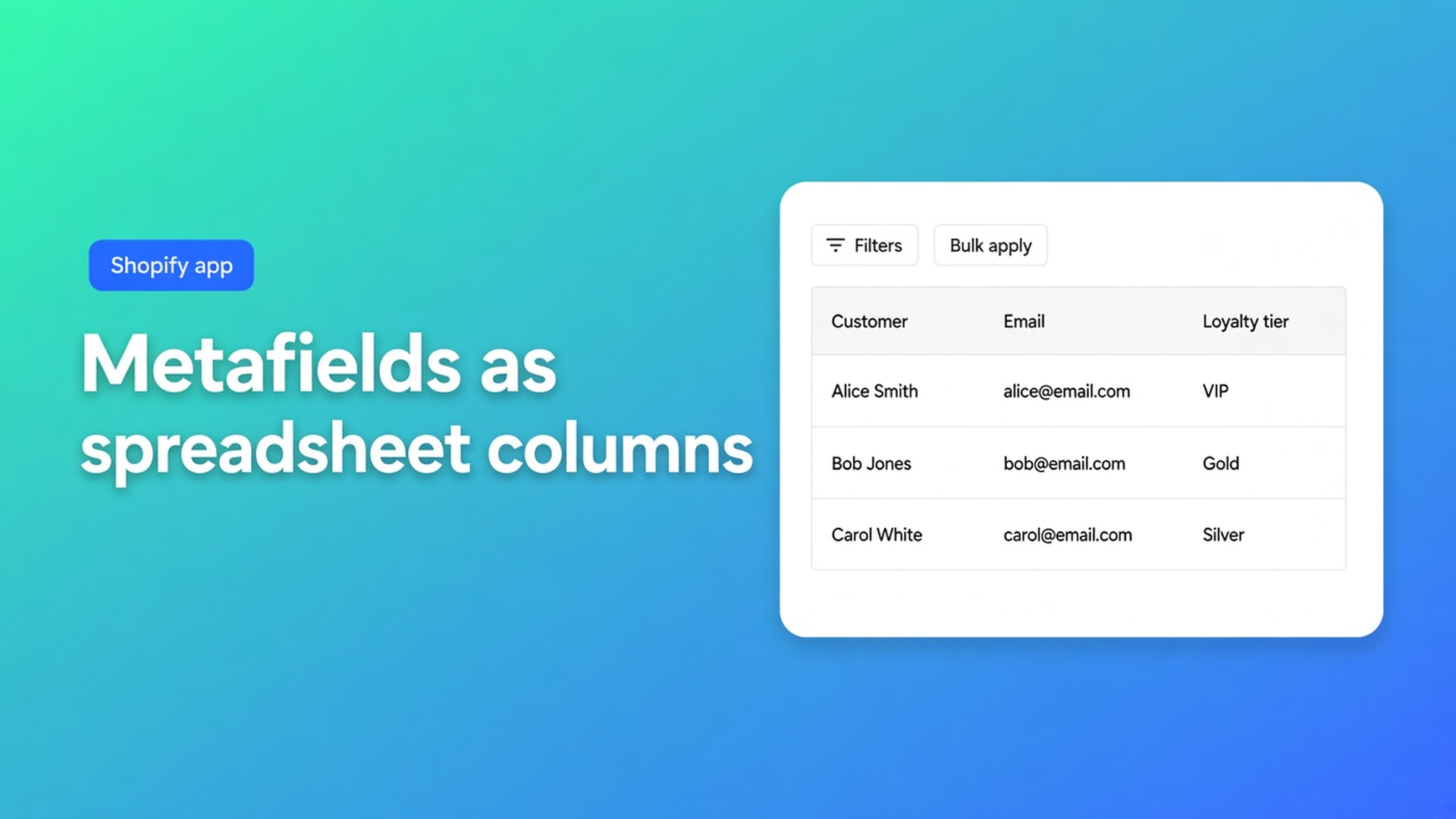
Shopify bulk edit customer metafields as spreadsheet columns
Loyalty tier, internal account number, B2B debtor code: those are not first name or tags. They live in a customer metafield. Native admin opens one profile, scrolls to Metafields, Save, next. At 800 wholesale accounts that is not a cleanup. Shopify bulk edit customer metafields belongs in the same table as locale and tax exempt: show the column, filter, stage one value, then Save.
This article explains why metafields are not just another CSV column, what OO - Bulk Customer Data Editor actually surfaces, and the hard limit: only metafields defined on the shop (or already present on loaded customers), and not every type is editable.
We previously covered the spreadsheet editor and tags in bulk. Tags are filters. Metafields are the extra data Shopify’s standard fields do not cover.
Shopify’s model: definition first, then values
Shopify Help on Metafields is explicit: you extend the data model — products, customers, orders — with your own fields. Their example: a customer metafield Loyalty tier, unique per customer, for personalisation. Workflow: a definition first (name, type, validation), then values on resources. Without a definition there is no consistent field to fill in bulk.
What native Customers is not: a grid of every customer metafield side by side. You open an account. You see pinned metafields. You type. You save. No `is empty` across 800 rows. Shopify POS also shows only pinned customer metafields — useful on the shop floor, not a bulk admin.
Do not claim Shopify’s own customer CSV carries every metafield cleanly. Do claim: after import you can check and update store-defined metafields in the spreadsheet.
What merchants try instead
1. Every profile, every metafield
Fine until page two of the customer list.
2. Tags as a fake metafield
`tier-gold` as a tag. Search works. Validation does not: someone types `gold` and `GOLD`. Segments turn to noise. Tags are not a typed Loyalty tier.
3. Export, Excel, re-import everything
You meant to update one loyalty column and dragged notes and consent along. In this app, empty CSV cells do not clear existing values on update — useful when you later patch only locale or one metafield. Native import is a different contract; do not claim Shopify CSV behaves the same.
None of those paths give you: metafield columns in admin, filter `is empty`, bulk apply, staged until Save.
How the editor shows metafields
OO - Bulk Customer Data Editor is Free. UI in English. 0 reviews at publication; launched 15 September 2026. Listing: spreadsheet in admin; fields the standard editor handles poorly in bulk, including Customer Locale and tax-exemption status; filters, reusable views, segments; store-to-store migration; Excel/Google Sheets via CSV. Categories name Metafields explicitly. No other OO app in this post.
What is Bulk Customer Editor?: table edits (name, email, phone, tags, note, locale, tax exempt, and more), default address, marketing consent, customer metafields defined in your store, filters, views, CSV, segments. Open from *Start editing* or Customers → More actions → Edit in bulk. Staff need `read_customers` and `write_customers`.
Edit customers in the spreadsheet lists editable groups:
General: first name, last name, email, phone, tags, note, locale, tax exempt
Marketing: email, SMS, WhatsApp consent (Shopify rules: subscribed needs a valid opt-in)
Default address
Metafields: customer metafields defined in your store (and metafields already present on loaded customers)
Read-only examples: total spent, order count, created date. Only changed fields go to Shopify. Failed row: Shopify’s error. Changes are permanent after Save; Discard drops unsaved work.
The FAQ repeats the boundary: metafields appear when they are defined in your store or already present on loaded customers. Unsupported metafield types may not be editable. Do not claim JSON, file, or every Shopify type. Create the definition in Shopify Admin first (Settings → Custom data → Customers). No definition, no column to fill.
Columns, filters, bulk apply
Columns, filters, and sorting: the Columns picker shows or hides fields (some identity columns always stay). The choice is remembered in that browser. Filters: field, condition (`contains`, `is`, `is empty`), value — across the whole customer list, not just the page. Search (name, email, phone, tags) hits Shopify search. Other fields — some metafields, note, locale — match while scanning results. Large store: segment or search first, then filter.
Apply a value to many customers:
Checkboxes or Select all matching (current search + segment + filters, max 50,000).
In the bulk-edit bar: Field.
Value (dropdowns for yes/no and select fields such as locale or consent).
Apply to selected — staged, not yet in Shopify.
Review, Save via the Shopify save bar.
Large saves run in batches: keep the tab open. Select-all combines search, segment, and filters. Selected rows do not all have to be on screen.
Locale and tax exempt remain the listing examples of fields native bulk handles poorly. Metafields sit in the same table, next to those core fields — not instead of them.
Example: Loyalty tier on 800 accounts
You defined a customer metafield Loyalty tier in Shopify (single-line text or a list), matching Shopify’s own metafield docs. After a migration the field is empty, while `vip` tags already exist.
Open the editor.
Columns: turn Loyalty tier on, plus tags to verify.
Filter: metafield is empty, combined with a `vip` search/tag if the store is large.
Select all matching (under 50,000).
Bulk apply: Field = Loyalty tier, Value = Gold. Staged.
Save, tab open. Spot-check a few profiles. Failed rows: Shopify error, retry the rest.
Second pass: locale for the same group, without wiping the metafield. Only changed fields are sent. Do not “also flip” consent.
What you need to start
Install OO - Bulk Customer Data Editor (Free).
Create the metafield definition in Shopify first. No definition, no column.
Open the editor; show the metafield column.
Filter `is empty` or the wrong value. Large store: segment or search first.
Bulk apply, review, Save. Keep the tab open on large jobs.
Do not claim types the FAQ marks unsupported. Test one row.
Wrap-up
Shopify bulk edit customer metafields is not an Excel round-trip and not a hundred open tabs. It is a column in the admin spreadsheet, only for defined (or already present) fields, with a hard limit on types. Locale and tax exempt stay the listing USPs; metafields fill the same table.
Define the field, open the editor, and update the column from the Bulk Customer Data Editor listing.

Custom webshops, websites, and applications combined with smart online marketing to help your business grow online!


Reviews
5/5
Mail: info@onlineorigins.nl
Tel: 073 234 0612
KVK: 89825624
BTW: NL865123639B01
Bruistensingel 500,5232 AH 's-Hertogenbosch Cookies
© 2026 Online Origins