
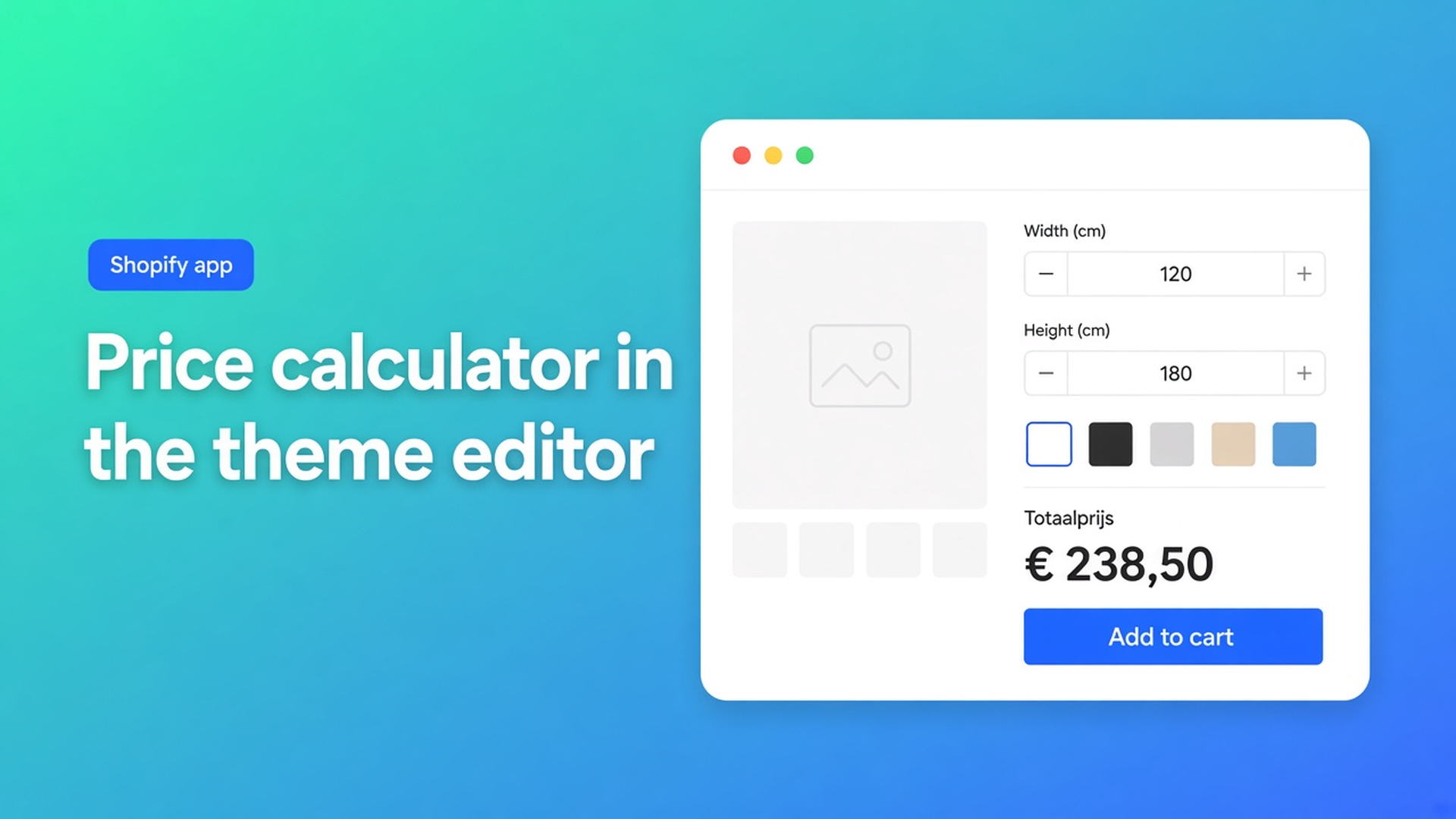
Shopify theme app extension price calculator: add it in the theme editor
The calculator exists in the app. Fields, formula, variant link: done. On the storefront you still see the list price and Add to cart. No width field, no live total. That is not a broken formula. A Shopify theme app extension price calculator does not appear until you place the app block. Shopify will not inject it into your Liquid for you.
This article covers why a calculator stays invisible without a theme block, the workarounds merchants try (snippets, Custom Liquid, theme forks), and how Options Price Calculator puts an app block on Default product — below the price, above Add to cart. After that: storefront bindings and the selector picker when your theme is not Dawn.
We previously covered adding product options without extra Shopify variants. That was the catalog. This is the piece customers actually see: the block on the product page.
The Shopify problem: installing an app is not a product page
Adding variants still caps a product at three options and 2048 variants. Need more options or continuous sizes? Shopify’s own note: use an app or theme code that collects line item properties. That app solves the limit. It does not solve placement.
Themes are templates, sections, and blocks. A price calculator is not a native block like Quantity or Buy buttons. It arrives as an app block — a theme app extension you drop in the editor. Shopify’s Extend your theme with apps is explicit: add, move, and save app blocks in the theme editor. They only work in sections that support app blocks. Change your published theme and those apps are not active on the new theme by default. You add them again.
So merchants install the app, write `product_price + (width * height)`, link the variant — and the storefront stays empty. Usually the block is missing, or the theme’s CSS selectors do not match price and Add to cart.
What merchants try instead
1. A Liquid snippet in `product.json` or `main-product.liquid`
Forum paste, `{% render 'calculator' %}` between price and button. The next theme update wipes it. Online Store 2.0 themes expect JSON templates, not hand-rolled includes. You then maintain two systems: the app and your own Liquid.
2. A Custom Liquid section with embed code
Shopify documents this as a workaround for apps that inject theme code. It feels developer-free until the theme moves the price into another `span`, the cart drawer uses a different button, or a second product template (curtains vs. steel profiles) never got the snippet.
3. One test product or a duplicate template
The calculator lives on a template you customized months ago. New products use Default product with no block. Shoppers on the new collection see nothing. You debug linking; the template is the gap.
None of those paths give you: one app block on the product template, draggable, no theme code, plus bindings you can re-pick after a theme switch.
How Options Price Calculator solves it
Options Price Calculator is Built for Shopify (5.0 from 26 reviews on the listing). Unlimited product options without extra variants, dynamic pricing with formulas, AI-generated fields and formulas, multilingual support. Starter $9.99/month: unlimited options, formula builder, metafields, embed unlimited calculators, styling. Premium $14.99/month: + conditional logic, Font Picker, live preview, real-time price breakdown. Free: 20 uses; always free on a Shopify Develop plan. Billed in USD.
The listing’s easy no-code setup is not “install and done.” The docs split two layers: the theme app extension block (visibility) and Storefront Theme Bindings (where the app finds price and Add to cart in *your* markup).
The app block on Default product
How to Add the Extension to the Product Page is short because the work lives in the theme editor, not in Liquid.
Shopify admin → Online Store → Themes → Customize on the published theme.
Page selector: Products → Default product (or the template your made-to-measure SKUs use).
In the section where the calculator should sit: Add block → Apps → Options Price Calculator.
Recommended placement: below the product price, above Add to cart.
Save.
Open a linked product on the storefront, change options, confirm the price updates.
Without that block the storefront shows no calculator, even if the formula in the app is correct. The install checklist puts the extension on the product template first after the dashboard: add the block, then create a calculator, then link variants, then confirm selectors.
If you use more than one product template — “Default product” for fabrics and “Product custom metal” for profiles — add the block on every template that should show a calculator. Shopify does not copy the block across templates.
Bindings: the app has to recognize your theme
Dawn, Craft, a custom OS 2.0 theme: the price almost never shares one CSS class. Storefront Theme Bindings map the app onto that HTML.
Product URL / domain: paste a product page that matches your main layout. The picker loads that URL.
Price selectors: where the price renders. One selector per line; first match wins. Extra lines are fallbacks.
Product form selectors: the form that submits the variant to cart.
Add to Cart (ATC) button selectors: the button — standard submit, theme button, or payment button.
Variant selector elements: radios, dropdowns, custom components. The app listens here so the calculator can switch when the variant switches.
Optional, only if you use the Customizer (live preview): product image selectors and cart line item image selectors. Skip them if you are not mounting a preview over the product photo.
Turn Show currency with prices off if your theme already formats currency. Enable server-side price validation is the safety toggle: the cart transform and draft-order checkout verify the calculator price on the server. Off = `__ooCustomPrice` is trusted as submitted.
Selector picker instead of guessing CSS
Typing `span.price-item.price-item--sale` by hand breaks easily. Using the Selector Picker is the recommended path, especially on custom themes.
Pick price on storefront: new window, click the price, the CSS selector lands in Price selectors.
Pick add to cart on storefront: click Add to cart, selector goes to ATC.
Pick product image on storefront: click the media; needed for live preview.
You can still edit selectors, add fallbacks, or reset to defaults. Docs tip: after a theme change, re-run all three pickers. Shopify says the same about app blocks: new theme = re-enable the apps.
A worked example: curtain shop switches themes
A curtain shop runs an m² calculator: number fields `width` and `height`, formula `product_price + (width * height)`. On the old theme the block sat under the price. They publish a new OS 2.0 theme. The catalog is unchanged. Link calculator forms still points at the right variants. The storefront shows €89 again.
Cause 1: the app block lived on the old theme. New theme, empty Default product. Fix: Customize → Default product → Add block → Options Price Calculator, back above Add to cart.
Cause 2 (block present, price not updating): the price now lives in another class, Add to cart is a custom button. In App settings: paste a curtain product URL, Pick price, Pick add to cart, save, test the storefront. Switching variants (linen vs. velvet) should keep or swap the calculator, depending on the per-variant link.
Only then style the calculator or turn on Premium price breakdown. Visibility first, bindings second, polish last.
What you need to start
Install Options Price Calculator from the listing. Use Free to trial, or Starter/Premium for unlimited calculated orders.
Add the theme app extension on your product template — required before anything shows on the storefront.
Create a calculator (manually or with AI on Starter+) and link it to the right variants. We covered bulk linking in bulk link price calculators to Shopify products.
Confirm storefront selectors. Custom theme: use the picker. Test price updates, Add to cart, and variant switches.
Optionally enable server-side price validation.
Docs: How to install, Add the extension, Theme bindings.
Wrap-up
A Shopify theme app extension price calculator is not a snippet in your theme. It is an app block on the product template, plus selectors that know price and Add to cart in *your* HTML. No block, no fields. No bindings, a block that updates the wrong price or misses the cart.
Place the block below the price and above Add to cart, save the theme editor, and re-pick selectors when you switch themes. Then customers see what you built in the formula builder.
Install Options Price Calculator and add the block in the theme editor — no Liquid hack.

Custom webshops, websites, and applications combined with smart online marketing to help your business grow online!


Reviews
5/5
Mail: info@onlineorigins.nl
Tel: 073 234 0612
KVK: 89825624
BTW: NL865123639B01
Bruistensingel 500,5232 AH 's-Hertogenbosch Cookies
© 2026 Online Origins