
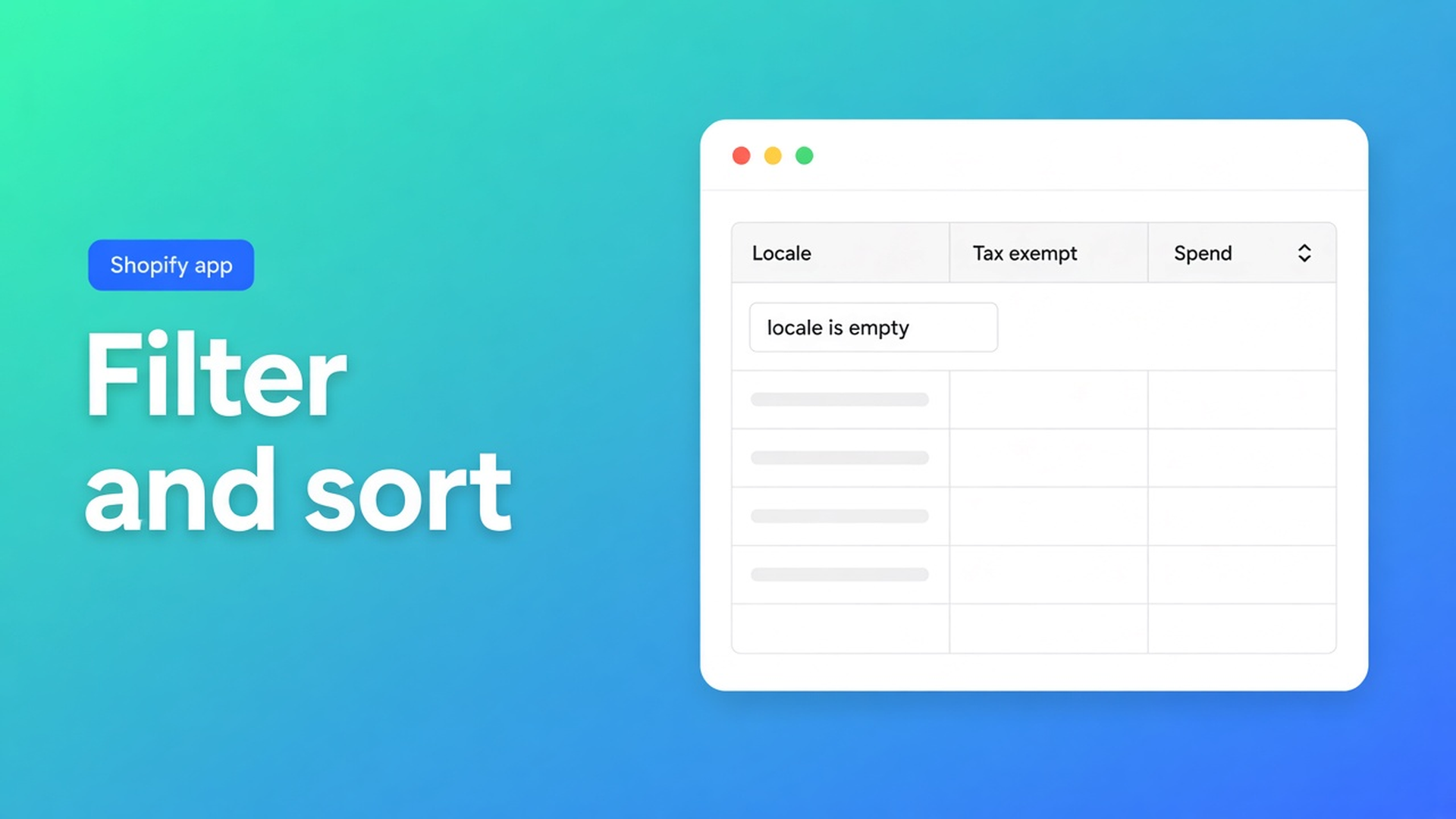
Filter and sort Shopify customers in a spreadsheet
Admin search finds `@icloud.com`. It will not line those rows up by spend, or hide every column except Locale and tax exempt. A Shopify filter and sort customers spreadsheet search is those three controls in one admin table: which fields, which rows, which order. Not an Excel detour. Not one profile at a time.
OO - Bulk Customer Data Editor is that table. Docs call the page Choose columns, filters, and sorting: picker, Filters, then Sort or a column header. That trio is the editor, not a sidebar extra.
We already covered filters before you apply and which columns stay on screen. This is the three together, with sort as the piece Admin will not do on Locale.
Admin will not sort a locale dropdown
Native Customers searches name, email, tag. Locale as a Shopify code (`nl`, `en`) and tax exempt as yes/no in one grid — that is this app’s listing USP. Free. 0 reviews. A segment is a living group. It does not sort “highest spend, then empty locale”.
Without the trio, shops:
export, filter in Sheets, re-import a column native CSV never had;
scroll pages 1–3 and treat “the top” as the biggest spenders;
search a tag and miss empty Locale, because Search is not a locale scan.
Do not claim Shopify’s own CSV fixes locale or tax exempt. Do claim: after import you isolate the set, sort it, then write.
Three habits that put the wrong row first
Search as if it were a filter. Search asks Shopify for name, email, phone, tags. Filters also run store-wide, on a different path. Common fields (name, email, tags, address, marketing, orders, spend) go to Shopify’s customer search. Other fields — docs list some metafields, note, locale — are matched while results are scanned. On a large shop, pair search or a segment *with* filters. Searching “nl” is not a Locale condition.
Columns on, filter on, sort skipped. Locale and Tax exempt are visible. `locale is empty` reloads the table. Without Sort the order is whatever Shopify returned. Open Sort, or click a sortable header: ascending or descending. Fulfillment usually wants spend descending so the accounts that matter sit on row one.
Filter the page you see. The table paginates. Filters search the whole customer list, combined with search and segment. The grid reloads with matches. Select all matching follows that set, up to 50,000, not the rows on screen.
None of those is: today’s columns, a shop-wide filter, then a sort so the urgent row is first.
Picker, Filters, Sort — in that order
Open the app from Apps → Bulk Customer Editor → Start editing, or Customers → More actions → Edit in bulk. Then, from the docs:
Columns. Columns picker. Show or hide fields. Some identity columns stay visible. The choice is remembered in this browser, not shop-wide. Views are shop-wide; that is a different post. Today: Locale, Tax exempt, Total spent if you will sort on it. Total spent, order count, and created date stay read-only: sortable, not editable.
Filters. Filters → field, condition (`contains`, `is`, `is empty`), value. Stack more if you need. Locale is empty. Tax exempt is no. Tag contains `Wholesale`. The table reloads.
Sort. Sort menu or header. Spend descending, or name ascending so duplicate emails sit together.
Only then edit cells or bulk apply. Changed cells stay marked until the Shopify save bar. Large saves run in batches; keep the tab open. Empty CSV cells on a later import do not clear existing values — that is another article.
Listing USPs stay Locale and tax exempt. Tags, note, consent, address, and defined metafields can sit in the same picker. Unsupported metafield types may not be editable. Do not pitch another OO app here.
Walk-through: after import, order the empty-locale list
Six thousand customers. Locale often blank. A wholesale subset. You want the largest empty-locale accounts first.
Columns: Locale, Tax exempt, Tags, Total spent.
Filter: `locale` → `is empty`. Add tag contains `Wholesale` only if that group is the job.
Sort: Total spent descending.
Read the first ten rows. Those are the urgent accounts, not page four of a random order.
Select all matching (cap 50,000) or a manual selection. Locale → `en`. Save. Preview. Confirm.
Skip step 3 and the same set arrives in a useless order. Skip step 2 and you sort the whole shop, then stamp retail with `en` when you meant wholesale.
Start in one browser
Install OO - Bulk Customer Data Editor. Free.
Start editing, or Customers → More actions → Edit in bulk.
Columns: only what you will write or sort on today.
Store-wide filters. Add Search or a segment if the shop is large.
Sort. Then Apply or cell edits. Save bar. Tab stays open.
Saving a view is optional and shop-wide. Today’s columns live in this browser until you change them.
Close
Shopify filter and sort customers spreadsheet is not a second Excel file. It is picker + Filters + Sort in one admin grid. Search is not a locale scan. Filters cover the shop. Sort puts the urgent row first. Native Customers will not do that trio on Locale or tax exempt.
Build the set in OO - Bulk Customer Data Editor. Write the value after that — not before, and not unsorted.
This blog is presented to you by

Floris-jan de Vries
Co-owner / Back-end developer / Shopify Expert
As a full-stack developer, Floris-Jan ensures the technical logic behind the design. He also uses his extensive knowledge of Shopify every day to provide our clients with the best possible support.


The Shopify Select partner for ambitious e-commerce businesses that want to grow!

Services
Reviews
5/5
Mail: info@onlineorigins.nl
Tel: 073 234 0612
KVK: 89825624
BTW: NL865123639B01
Bruistensingel 500,5232 AH 's-Hertogenbosch Cookies
© 2026 Online Origins