
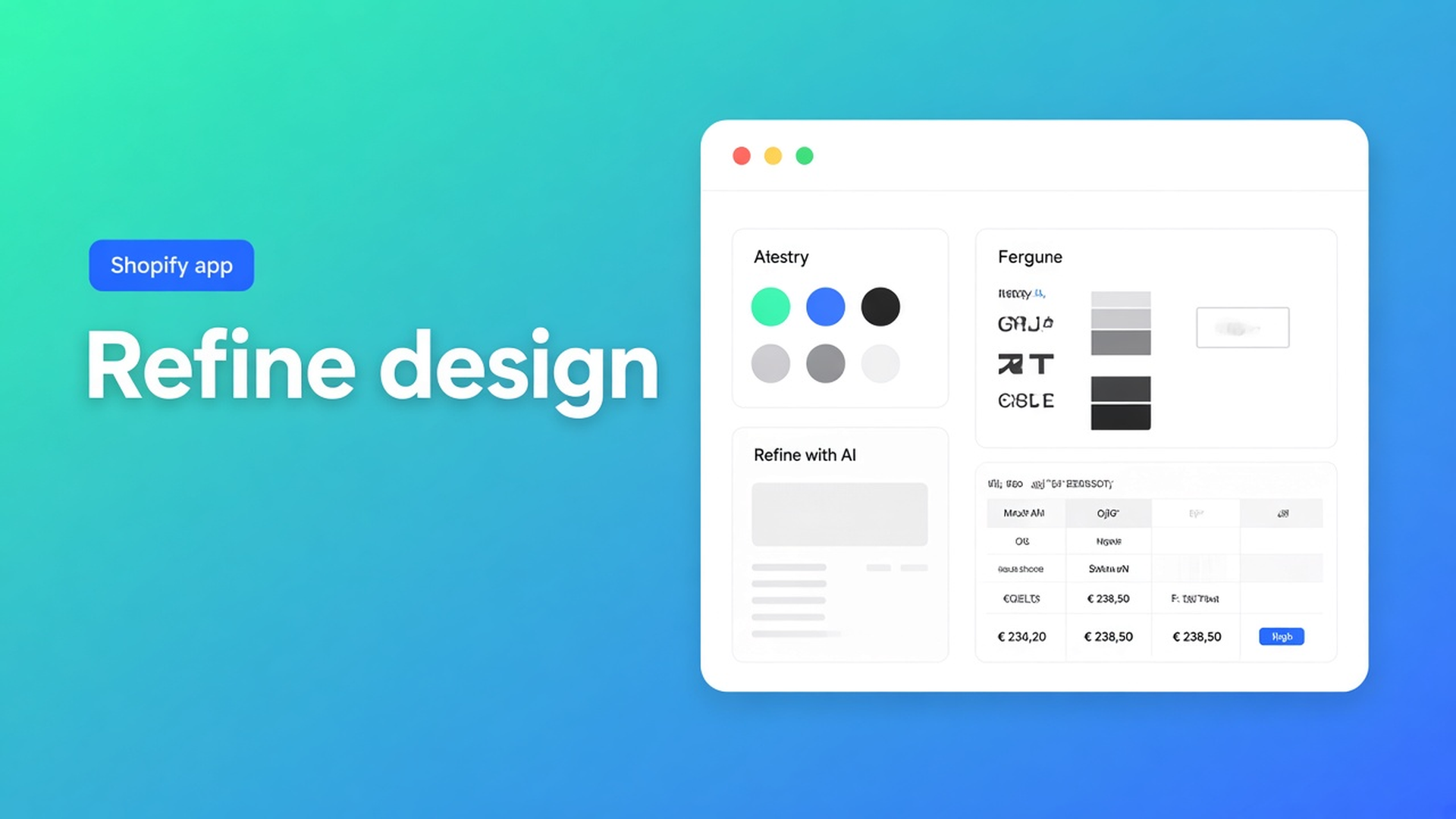
Shopify AI refine table design: description, screenshot, or URL
The size chart is right. The centimetres are in. On the product page it still looks like a default grid: mint that is not yours, a font that does not appear in the theme. Shopify AI refine table design is not Generate again. It is Refine with AI on the Design step: describe the look, drop a screenshot, or paste a URL. Structure stays. Overrides merge only after you confirm.
We already walked through pulling colours from a brand URL — that is one of three inputs. Generate with AI creates the draft. Here: when to pick description, screenshot, or URL, and why you do not hit Refine Structure when you only want the shell. The app is OO - Advanced Table Builder. Listing handle stays `tables-specs-comparisons`. Docs still say Tables, Specs & Comparisons in places.
Structure is the rows. Design is the chrome.
Design settings owns templates, colours, fonts, spacing, and chrome (popup, tray, tabs). It changes by type:
Size charts — popup versus plain, trigger, table colours
Product Specs — details panel, classic, cards
Comparison — grid/cards/spotlight, modal and tray
Tabbed — tab style and colours
Us vs Them — highlight templates
That is not a second table. Same rows, different shell. Native Shopify has no “make this size chart look like the theme”. Theme CSS breaks on the next update.
Create and refine tables with AI splits two buttons:
Refine Structure — table type stays locked, but rows/groups/tabs may rebuild. Confirm before replacing.
Refine Design — description, screenshot, or website URL. Structure stays as-is; design overrides merge after confirm.
Do not mix them up. Generate again picks a type and sample structure. That wipes your centimetres.
Auto-placement applies to size charts (above Add to cart when the Size chart block is missing) and compare (inject under the price). Product Specs = theme block. Do not claim ATC auto-inject for Specs.
What shops do until the table stays off-brand
Five tables, every colour clicked by hand
It works. It is slow when size chart, specs, and Us vs Them should share the same mint and the same font.
Refine Structure “maybe it will pick up the colour”
It rebuilds rows. The type stays locked. Wrong button if you only wanted colour.
Generate with AI a second time
AI picks a type, fills sample data, can approximate colours from an image. That is a guess at Create, not a brand pass. Refine Design is that pass.
None of those: Design → Refine with AI → one of three inputs → confirm.
Three inputs, one control
OO - Advanced Table Builder is Free, listing 5.0 from 1 review. Listing: visual builder or an AI draft from a description or screenshot; match colours, fonts, templates to the brand; place; translate. Works with AI, Excel, Google Sheets.
Design settings lists the three Refine inputs:
A written description — e.g. “dark green accents, cream background”. No URL, no PNG. Use this when the brand rule fits in a sentence and the homepage is too noisy.
A screenshot — a look you want to approximate. Same formats as Create: PNG, JPEG, WebP, GIF, max 4 MB. Use this when the brand lives in Figma or a PDF, not on a public URL.
A website URL — the app reads public brand colours/fonts and maps them onto this table type. Public storefront, not an admin URL.
After confirm: Structure unchanged. No new rows. No type change. Check whether mint is now your green and whether the font is close. AI is a draft; the docs ask for review.
Tip from the same AI article: after Create, review module types so Weight / Price / Color map to Shopify modules instead of custom attributes. Refine Design does not change that mapping. Do the audit on Structure, the colour pass on Design.
Placement after that: theme app block (Size chart, Specs, Compare, Tabbed, Us vs Them). Shortcode `[oo-table id=…]` only with the app embed on and the table enabled. Customer-facing strings per locale in Settings — AI does not fill FR for you.
Example: a specs table, no URL, a brand PNG instead
You have a Product Specs table. Rows are right, metafields connected. The homepage is a neon campaign landing; you do not want that URL. The brand sheet is one PNG: cream, dark green, geometric sans.
Open the table → Design. Not Structure, not Generate.
Refine with AI. Upload the PNG (under 4 MB). No admin link.
Confirm. Rows still the same. Check chrome (cards vs classic) in the type templates.
Storefront: product page, specs block. Homepage neon should not appear in the table.
Second table (size chart): the same PNG again, or a short description “same green, same cream” if the first pass already landed.
If you had a calm homepage, the URL would have been faster. If you only had the sentence from the brand guide, the description. Three roads, one button.
Ship the design pass
Install OO - Advanced Table Builder. Free.
Build or open a table whose rows are already correct.
Design → Refine with AI → description, screenshot, or website URL. Confirm.
Check Structure: centimetres still there. Check Design: colour and font.
Place a theme block. Do not expect Specs via ATC auto-inject.
Do not claim AI always maps Shopify modules perfectly or hits exact Pantone. The listing promises the draft; the docs require the review.
Wrap-up
Shopify AI refine table design is the shell, not the content. Description when the rule fits in a sentence. Screenshot when the brand lives in a PNG. URL when the storefront is the source of truth. Structure stays until you confirm.
Run Refine with AI on Design in OO - Advanced Table Builder. After that the size chart looks like the brand, without regenerating the centimetres.

The Shopify Select partner for ambitious e-commerce businesses that want to grow!


Services
Reviews
5/5
Mail: info@onlineorigins.nl
Tel: 073 234 0612
KVK: 89825624
BTW: NL865123639B01
Bruistensingel 500,5232 AH 's-Hertogenbosch Cookies
© 2026 Online Origins